Get started
Moving from Sonarr, Radarr, Prowlarr and SABnzbd to StreamZH
On this page
- 1. Before you start
- 2. Install StreamZH
- Docker (Docker Compose)
- Linux (systemd service)
- Windows
- 3. Switch on the side-by-side mode
- 4. Path mappings
- 5. Run the wizard, app by app
- Recommended order
- SABnzbd
- Prowlarr
- Radarr and Sonarr
- 6. The Usenet connection limit
- 7. What is not taken over
- 8. Check the result
- 9. Switch over
- 10. Roll back
- Reference: wizard options and API
StreamZH takes over an existing setup: settings, indexers, Usenet servers, download settings and the whole library (movies, series, episodes, the files you already have). It does this through the migration wizard (Settings → Migration), which only reads the old apps through their APIs. Nothing in Sonarr, Radarr, Prowlarr or SABnzbd is ever changed, so you can always go back.
The recommended way is a side-by-side phase: StreamZH runs next to the old apps, takes everything over, but grabs nothing by itself until you switch over. You compare, fix what needs fixing, and switch when you are happy.
This guide uses a generic example: user johndoe, a server at 192.168.1.10, the apps on their default ports (Radarr 7878, Sonarr 8989, Prowlarr 9696, SABnzbd 8080) and media in /data/media/movies and /data/media/tv. Replace these with your own values.
- 1. Before you start
- 2. Install StreamZH
- 3. Switch on the side-by-side mode
- 4. Path mappings
- 5. Run the wizard, app by app
- 6. The Usenet connection limit
- 7. What is not taken over
- 8. Check the result
- 9. Switch over
- 10. Roll back
- Reference: wizard options and API
1. Before you start#
- Write down the addresses and API keys of the old apps:
- Radarr, Sonarr, Prowlarr: Settings → General → Security → API Key.
- SABnzbd: Config → General → Security → API Key (the API key, not the NZB key).
- Note your Usenet passwords and indexer API keys. The old apps never hand out passwords and API keys through
their API (they show
********), so the wizard asks you to type them in. Your provider's and indexers' web sites show them if you do not have them at hand. - Know where your files are. Look at Radarr/Sonarr → Settings → Media Management → Root Folders and at SABnzbd → Config → Folders. These are the paths the old apps see — inside their containers, if they run in Docker.
- Make a backup of the old apps (Radarr/Sonarr/Prowlarr: System → Backup; SABnzbd: Config → General → Backup). The migration does not change them, but a backup costs nothing.
2. Install StreamZH#
Install StreamZH on a machine that can see the same media and download folders as the old apps — usually the same
server. StreamZH listens on port 9797; open http://192.168.1.10:9797 afterwards and create the first user (it
becomes the owner). From another device than the server (and always with Docker) the setup page asks for the one-time
setup code that StreamZH prints in its console and log at start (docker logs streamzh; also in the file setup-code
in the data folder, and under "Show setup code" in the Windows tray icon).
Installation describes every platform in detail. What matters for a migration:
Docker (Docker Compose)#
Use the compose file of INSTALL.md → Docker. The important part are the volumes. Mount media and downloads at the same paths the old apps use: when
Radarr sees your movies at /data/media/movies, mount them at /data/media/movies in StreamZH as well:
    volumes:
      - ./config:/config
      - /data/media:/data/media          # host path : path inside the container
- /data/downloads:/data/downloadsThen the wizard needs no path mappings at all. PUID/PGID should be the user that owns your media (id -u johndoe, id -g johndoe); StreamZH runs as that user, never as root.
Linux (systemd service)#
Install the .deb, .rpm or tar.gz package (INSTALL.md → Linux). The service runs as the system user streamzh (program in /opt/streamzh, data in /var/lib/streamzh). It needs
read and write access to the media and download folders, for example:
sudo setfacl -R -m u:streamzh:rwX -m d:u:streamzh:rwX /data/media /data/downloadsor add it to the group that owns them: sudo usermod -aG media streamzh.
Windows#
Run the installer (INSTALL.md → Windows) and let it run StreamZH as a Windows service. A
service cannot see mapped drives (Z:): use UNC paths such as \\nas\media\movies, and run the service as a
user when the NAS needs a login (INSTALL.md → The service account).
3. Switch on the side-by-side mode#
While the old apps keep running, StreamZH must not grab anything: otherwise both would download the same releases.
The wizard switches the side-by-side mode on when you start it (you can also switch it in Settings → Migration). While it is on:
- StreamZH does not grab automatically: no RSS sync, no automatic search (after adding a movie or series, for missing items, for upgrades below the cutoff, the scheduled searches), no new search after a failed download, no searches from import lists. The indexers are not even asked, so their API limits stay for the old apps.
- Searching and grabbing by hand still work (Interactive Search, the Search page).
- Everything else works: the library, calendar, downloads you start yourself, imports of those downloads.
- The status window shows "Side-by-side mode: StreamZH grabs nothing automatically" (as information, not as a warning).
The migration itself never switches the mode off. You do that when you switch over (step 9).
4. Path mappings#
A path mapping tells StreamZH how a path of the old app looks from StreamZH's side. You need one whenever the two see the same folder under a different path — typically when the old apps run in Docker and StreamZH does not, or the other way round.
| Old app sees | StreamZH sees | Mapping (old → StreamZH) |
|---|---|---|
/tv (Sonarr in Docker) |
/home/johndoe/media/tv |
/tv → /home/johndoe/media/tv |
/movies (Radarr in Docker) |
/data/media/movies (StreamZH in Docker) |
/movies → /data/media/movies |
/data (all apps in Docker) |
/data (StreamZH in Docker, same volume) |
none needed |
/downloads/complete (SABnzbd in Docker) |
/srv/downloads/complete |
/downloads → /srv/downloads |
/mnt/media/tv (Linux server) |
D:\Media\TV (StreamZH on Windows) |
/mnt/media/tv → D:\Media\TV |
/mnt/media/movies (Linux server) |
\\nas\media\movies (Windows service) |
/mnt/media/movies → \\nas\media\movies |
- The longest matching mapping wins, so
/data/media/anime→/srv/animecan live next to/data→/srv/data. - Mappings work on whole folder names:
/tvmatches/tv/Showbut not/tvshows. - Every folder StreamZH uses must be inside a storage location. The paths step marks folders outside them; the owner allows them in one click (Allow as storage location).
- The wizard's preview lists every folder the old app uses, what it becomes in StreamZH and whether StreamZH can see it. Fix the mappings until every folder shows as found, then preview again. Do not take over the library while folders are missing: StreamZH would not find the files.
5. Run the wizard, app by app#
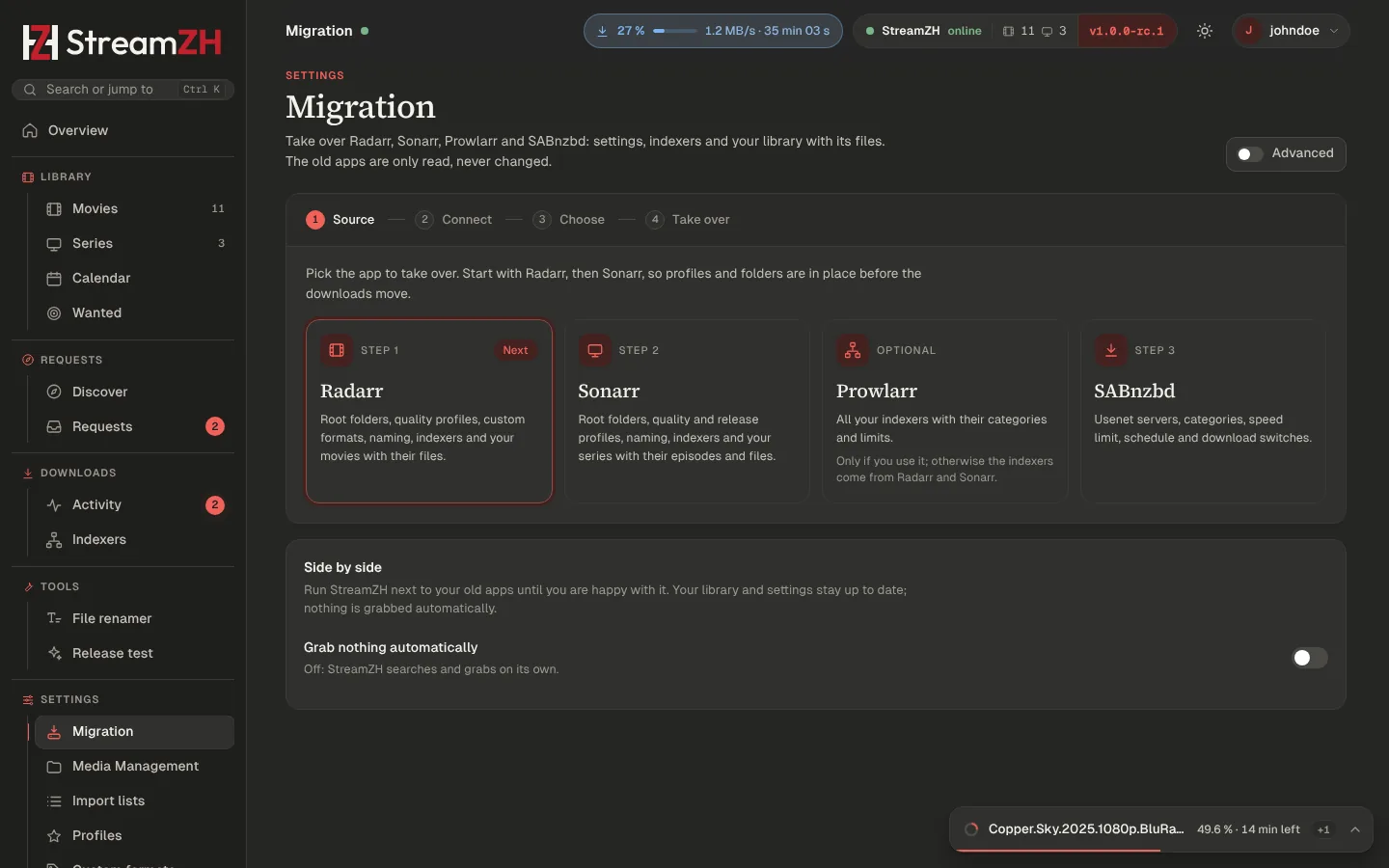
Before the first run, make a backup of StreamZH itself (System → Backup → Backup now): it is the easiest way back to a clean StreamZH.
Settings → Migration. For each app:
- Choose the app, enter its address (e.g.
http://192.168.1.10:7878) and API key, and Test. If the app runs behind a URL base, include it (http://192.168.1.10:8080/sabnzbd; for SABnzbd the wizard also finds it by itself). - Add the path mappings (step 4).
- Preview. The wizard reads the app and shows, per part, what happens to each item: create (new in StreamZH), update (exists in StreamZH and is updated), link (exists already, kept or connected) or skip (with the reason). Nothing is changed yet.
- Choose the parts and leave out single items you do not want. Type in passwords and API keys where the wizard asks for them.
- Optionally make a dry run: it reports what would happen, without changing anything.
- Run. The run happens in the background; you can follow it and find it later in the run history with its full report (created, updated, linked, skipped, failed, and why).
Every run can be repeated: a second run updates what is there instead of creating duplicates (items are matched by TMDB/TVDB id, name, host or URL). So you can take over again shortly before you switch over, to pick up what changed in the old apps in the meantime.
Recommended order#
The wizard marks the next app to take over:
- Radarr — settings, indexers (when you have no Prowlarr), then the movies.
- Sonarr — settings, indexers, then the series.
- Prowlarr (if you use it) — indexers.
- SABnzbd — Usenet servers, categories, download settings.
Within each app, settings come before the library, so movies and series find their quality profiles, root folders and tags. The download client part of Radarr and Sonarr shows SABnzbd's address, ready for the SABnzbd step.
SABnzbd#
| Part | What is taken over |
|---|---|
| Usenet servers | Address, port, SSL and certificate check, user name, connections, priority (primary/backup), retention, timeout, "optional" and "required", expiry date, quota, notes. Passwords: SABnzbd does not hand them out — type each one in. A server without a password is added switched off; enter the password later in Settings → Usenet servers, or run the wizard again with it. Servers are matched by host, port and user name. |
| Categories | Folder, priority, post-processing (download only / +repair / +unpack / +delete). SABnzbd's movies becomes StreamZH's movies, tv its series; other categories (e.g. anime) are added with their name. * (the default) has no counterpart, but categories that inherit from it get its settings. |
| Download settings | Line speed and speed limit, the incomplete/completed/NZB backup folders (through the path mappings), the scheduler (pause, resume, speed limit, server and category rules), and switches StreamZH has as well: abort jobs that cannot be completed, ignore samples, check before download, propagation delay, article tries, recursive unpack, all par2 files, only unpack verified jobs, deobfuscate, temporary folder name, pause on start, duplicate detection, encrypted RAR, queue sorting, unwanted extensions, cleanup list, minimum free space. Each setting is its own item and can be left out. |
While both run, StreamZH and SABnzbd may use the same download folders — that is fine, each touches only its own downloads. The watched folder is not taken over while both run (both would pick up the same NZB files).
Prowlarr#
| Part | What is taken over |
|---|---|
| Indexers | Usenet and torrent indexers with categories, priority, query and grab limits, VIP date and seed settings, the same way as Indexers → Import from Prowlarr. Prowlarr hides the indexers' own API keys, so they are reached through Prowlarr (http://192.168.1.10:9696/1/api) — unless you type the indexer's own API key in the wizard: then StreamZH uses the indexer directly and keeps working without Prowlarr. An indexer with the same name in StreamZH is kept as it is. |
Radarr and Sonarr#
The settings and library parts (root folders, quality definitions and profiles, custom formats, tags, release profiles, naming, media management, notifications → Connect, import list exclusions, movies, series, history, blocklist) are described in the wizard itself. For the indexer and downloader parts:
| Part | What is taken over |
|---|---|
| Indexers | Newznab and Torznab indexers: URL, API path, categories, priority, RSS/automatic/interactive search, additional parameters, and for Torznab the minimum seeders and seed goals. StreamZH has one indexer for movies and TV: the same indexer from Radarr and Sonarr (same URL) becomes one indexer — Radarr's categories as movie categories, Sonarr's (plus its anime categories) as TV categories. An indexer that is already in StreamZH with the same URL is updated. API keys are masked by Radarr/Sonarr: type them in; an indexer without a key is added switched off. Skipped: indexers that are neither Newznab nor Torznab, and indexers that come from Prowlarr (http://prowlarr:9696/3/) — take those over from Prowlarr instead. |
| Download clients | qBittorrent, Transmission and Deluge become StreamZH download clients (address, SSL, URL base, user name, add paused, priority, "remove completed") with their remote path mappings (the local path mapped like your library folders; a folder StreamZH cannot see is skipped). The same client in Radarr and Sonarr (same kind, host and port) becomes one; a second run updates it. Passwords are masked: type them in; a client without its password is added switched off. StreamZH adds its torrents with its own category streamzh, so Radarr/Sonarr and StreamZH never pick up each other's torrents. Usenet downloaders create nothing (StreamZH downloads by itself); a SABnzbd client shows SABnzbd's address and category for the SABnzbd migration. Other torrent clients (rTorrent, µTorrent, …) are skipped. |
6. The Usenet connection limit#
Your Usenet provider allows a fixed number of connections (e.g. 30). While SABnzbd and StreamZH both run, they share that limit: if both use 30, the provider refuses connections and downloads stall.
So the wizard gives StreamZH half of SABnzbd's connections while the side-by-side mode is on (option "Connections": half). SABnzbd keeps its own. Once you have stopped SABnzbd, raise StreamZH's connections to the full number: in Settings → Usenet servers, or by running the "Usenet servers" part again with same.
SABnzbd mostly idles during the side-by-side phase (Sonarr and Radarr still send it their grabs), but a download in each app at the same time is enough to hit the limit — keep the halves until you switch over.
7. What is not taken over#
StreamZH never changes the old apps and does not take over:
- SABnzbd: post-processing scripts, RSS feeds, sorters (StreamZH renames and sorts into the library by itself), Direct Unpack, "pause downloading during post-processing", "only get articles for the top of the queue", the global download quota (StreamZH has a quota per server), the watched folder (see above), the queue and the history.
- Prowlarr: apps and their sync, download clients, notifications, the history.
- Radarr/Sonarr: indexers that are neither Newznab nor Torznab, torrent clients other than qBittorrent, Transmission and Deluge, the torrents in the old app's queue, and whatever the preview does not list.
- Passwords and API keys are taken over only where you type them in.
The preview lists the settings that StreamZH does not have as skip with the reason, so you can set them up by hand if you need them.
8. Check the result#
During the side-by-side phase, compare:
- Library: the numbers of movies, series and episodes, and that existing files show as present (no "missing" for files Radarr/Sonarr have). Missing files almost always mean a wrong or missing path mapping.
- Profiles and custom formats: Tools → Release test with a few release names you know.
- Indexers: Indexers → Test all. Indexers added without an API key are switched off — enter the keys.
- Usenet: Settings → Usenet servers → Test for every server. Servers added without a password are switched off.
- Search by hand: an Interactive Search for a movie and an episode should find the releases the old apps find.
- A manual grab: grab one release by hand and watch it download, unpack and import.
Do not use Rename or Organize on the library during the side-by-side phase: StreamZH would rename files that Sonarr/Radarr still manage.
9. Switch over#
When everything looks right:
-
Take over once more (optional): run the wizard again for Radarr and Sonarr to pick up what changed since the first run. It updates instead of duplicating.
-
Stop the old apps' automation. Simplest is to stop them:
- systemd:
sudo systemctl disable --now radarr sonarr prowlarr sabnzbd(your service names may differ), - Docker:
docker compose stop radarr sonarr prowlarr sabnzbd, - Windows: stop the services or quit the tray apps.
If you want to keep them for a while, at least switch off RSS and automatic search on every indexer in Radarr and Sonarr, and pause SABnzbd.
- systemd:
-
Indexers through Prowlarr: if you keep indexers that go through Prowlarr, keep Prowlarr running — or enter their own API keys in StreamZH (Indexers → edit) before you stop it.
-
Usenet connections: raise them to your provider's full number (Settings → Usenet servers).
-
Watched folder: set it in Settings → Downloads if you used one in SABnzbd.
-
Switch the side-by-side mode off (Settings → Migration). From now on StreamZH runs RSS sync and the automatic searches.
-
Point your other tools to StreamZH: request apps, Plex/Jellyfin notifications (Settings → Connect), scripts that used the old apps' APIs.
10. Roll back#
Because the old apps were never changed, going back is simple:
- Switch the side-by-side mode on again in StreamZH (or stop StreamZH).
- Start the old apps again (
sudo systemctl enable --now radarr sonarr prowlarr sabnzbd,docker compose start …) and switch their automation back on if you switched it off. - Downloads StreamZH finished and imported are in the library folders like any other file; Radarr and Sonarr find them with a "Refresh & Scan".
To start over in StreamZH, restore the backup you made before the migration (System → Backup, see step 5), or
delete StreamZH's data folder (/config, /var/lib/streamzh, C:\ProgramData\StreamZH) and set it up again.
Reference: wizard options and API#
The wizard uses StreamZH's API (admin only), which you can use from scripts as well (X-Api-Key header, Settings →
General → API key):
| Call | Does |
|---|---|
GET /api/v1/migration/sources |
The apps and their parts. |
POST /api/v1/migration/{app}/test |
Checks address and key ({ "url": "...", "apiKey": "..." }). |
POST /api/v1/migration/{app}/preview |
What would happen; changes nothing. |
POST /api/v1/migration/{app}/run |
Starts a run (dry run with "dryRun": true). |
GET /api/v1/migration/runs, /runs/{id} |
Run history and reports; POST /runs/{id}/cancel stops a run. |
GET/PUT /api/v1/settings/automation |
The side-by-side mode: { "hold": true } on, { "hold": false } off. |
The request body of preview and run:
{
  "url": "http://192.168.1.10:8080",
  "apiKey": "<SABnzbd API key>",
  "pathMappings": [{ "remote": "/downloads", "local": "/data/downloads" }],
  "sections": ["servers", "categories", "downloads"],
  "exclude": ["downloads:schedule:2"],
  "secrets": { "servers:news.example.com": "<password>" },
  "options": { "servers.connections": "half" },
  "dryRun": false
}sectionsleft out: the default parts. Item keys (forexcludeandsecrets) are shown in the preview, e.g.servers:news.example.com,indexers:4,movies:438631.secretsare used for this run only and stored only where StreamZH stores such a value anyway (a Usenet server's password, an indexer's API key). The old apps' API keys are never stored.options."servers.connections":half(default while the side-by-side mode is on) orsame.