Guide
Library
On this page
Movies and Series (sidebar, Library group) list everything StreamZH manages, as a poster grid with filters (All, On disk, Missing, Unmonitored), sorting (title, year, recently added) and a search box. A badge on each poster shows its state: on disk, missing, incomplete (series with missing episodes), downloading, unmonitored.
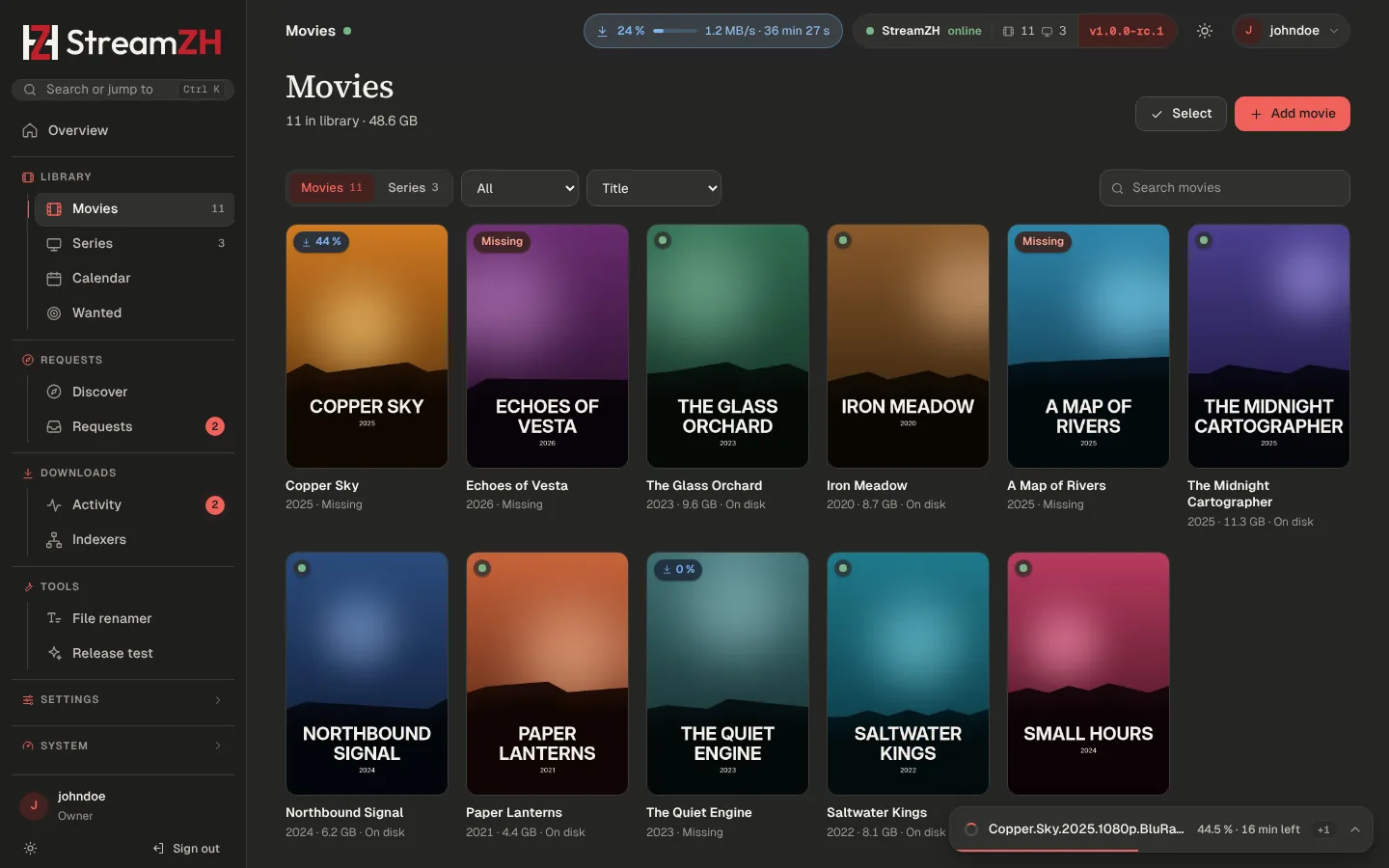
Before you can add anything, StreamZH needs a TMDB API key and a root folder; the library pages say so when one is missing.
Add a movie or series#
Add movie / Add series searches TMDB. Pick the title, then:
| Option | Meaning |
|---|---|
| Root folder | Where its folder is created (Settings → Media Management → Root folders) |
| Quality profile | Which releases are wanted and until when to upgrade (Quality) |
| Series type | Standard, Daily or Anime (see below). Shown when the series looks like daily or anime, or in Advanced mode |
| Monitored | StreamZH looks for it and grabs it. For series: all regular seasons |
| Start search for missing | Search right away instead of waiting for RSS sync (Settings → Indexers → Search when adding sets the default) |
Movies are grabbed automatically from their minimum availability on (Settings → Indexers: announced, in cinemas, or released). The Search button always searches.
The detail page#
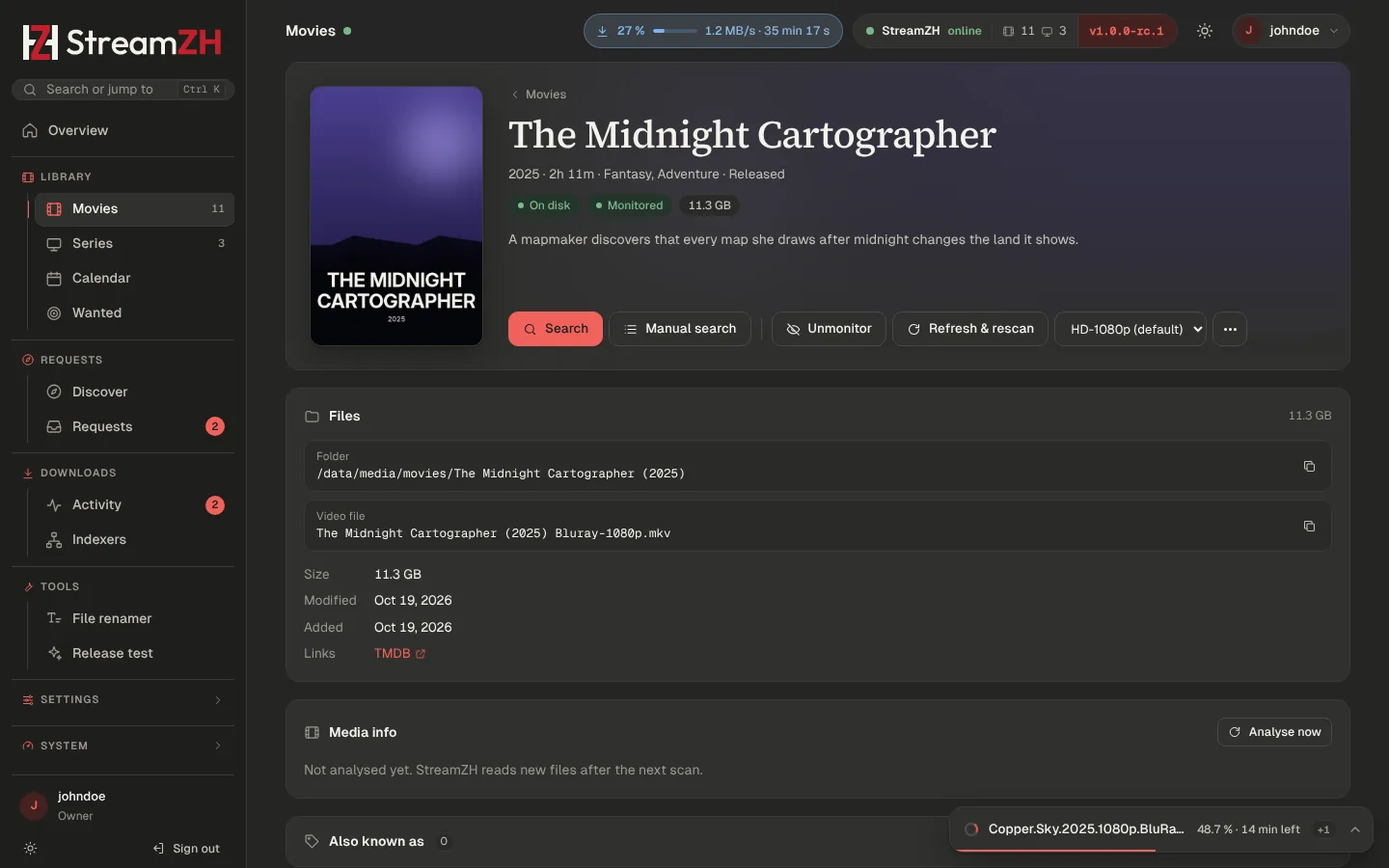
A movie or series page shows the poster, overview, folder, files and history, and these actions:
- Search queues an automatic search: the best release is grabbed in the background. Manual search shows all releases with the reasons StreamZH would reject some (Searching). Series also have Search season (and Manual search for it) and a manual search per episode.
- Refresh & rescan loads the metadata from TMDB again and reads the folder.
- Monitored switches for the movie, the series and each season.
- Quality profile and, for series, Series type can be changed.
- More (the menu): Rename files, Organize, Remove.
- History: what was grabbed, imported, upgraded, renamed or deleted for this item.
- Media info (with ffprobe): codec, resolution, HDR, audio channels and languages, subtitles of the file. Read the file with ffprobe again refreshes it.
- Also known as: alternative titles (below).
Series types#
| Type | Episodes are named and searched by | For |
|---|---|---|
| Standard | Season and episode (S01E05) |
Most series |
| Daily | Air date (2026.10.18) |
Talk shows and news |
| Anime | Absolute episode number (Title - 26) and scene numbering |
Anime releases |
For anime, StreamZH reads the scene numbering from TheXEM: when release groups number a series differently from
TMDB, the episode list shows the scene number next to the TMDB one, and searches and imports use it. The
Anime episode format (Settings → Media Management, Advanced) can use {absolute:000}.
Alternative titles#
Releases often carry another title than TMDB's main one: a translation, a scene name, a former title. The Also known as panel on the detail page lists the titles StreamZH matches releases against: TMDB's alternative titles and translations, scene names from TheXEM, and your own titles (Add your own title, for example the German one). With Search alternative titles (Settings → Indexers, Advanced; on by default) searches also use them when an indexer cannot search by id or finds nothing.
Import existing folders#
When a root folder already contains movie or series folders, the library page shows Import n existing. The import page matches each folder with TMDB (by folder name and year), lets you correct a match (Search TMDB by hand) or skip a folder, and adds the chosen ones with their files. Nothing is moved or renamed.
Coming from Radarr or Sonarr? The migration wizard takes over the library with monitoring, profiles and history instead.
Select, mass edit and remove#
Select (owners and admins) turns the grid into a selection. The bar at the bottom then sets for all selected items: Monitor / Unmonitor, Quality profile…, Root folder… (move them to another root folder or only change the path), Organize… and Remove….
Remove takes an item out of StreamZH; its files stay unless you tick Delete files and folder. Deleted files go to the recycle bin when one is set (Settings → Media Management → File management), else they are gone for good.
Moving to another root folder: Move the folders there moves them (to another drive: copied first, the old folder is deleted only after the copy is complete); Only change the path moves nothing, for when you move the files yourself.
Rename and Organize#
Imported files are named with the formats of Settings → Media Management (for example
{Movie Title} ({Release Year}) {Quality Full}). For files that do not follow them yet:
- Rename files (detail page) renames the files of one movie or series to the current format, after a preview.
- Organize (detail page or mass editor) renames folders and files to the naming scheme, with a preview of every change. Subtitles, NFO files and artwork next to a video get the new name too. The run continues in the background (the status window shows it), and Undo puts everything back for the next 24 hours.
Do not rename or organize while Radarr or Sonarr still manage the same files (side-by-side phase of a migration).
File renamer#
Tools → File renamer renames any files, not only library items: for example a folder of downloads you want to tidy up before importing. Nothing changes before you press Rename, and every run can be undone from its history.
- Simple: choose a folder (or a movie or series) and one name pattern; episodes and movies get their real titles from the library or TMDB. Presets for Plex/Jellyfin/Emby, with quality, scene style and more.
- Advanced: a filter (text,
*S01*patterns or/regex/, subfolders, files and/or folders, leave out samples) and a list of rules that run from top to bottom: Media names, Replace (text or regular expressions with$1groups, with a tester), Remove, Insert, Case, Counter, Extension, Trim. Subtitles and other files with the video's name follow it. Rules, filter and options can be saved as presets.
The preview marks conflicts; files with a conflict are left as they are.
Monitoring and what gets downloaded#
- A monitored movie or episode that has no file is missing: RSS sync and searches grab it when a release fits its profile.
- A file below the profile's cutoff (or in the wrong language) is cutoff unmet: StreamZH keeps upgrading while the profile allows upgrades.
- Wanted (sidebar) lists both, with Search all. See Searching.
- Unmonitor deleted files (Settings → Media Management) stops monitoring an item whose file you deleted, so it is not downloaded again.